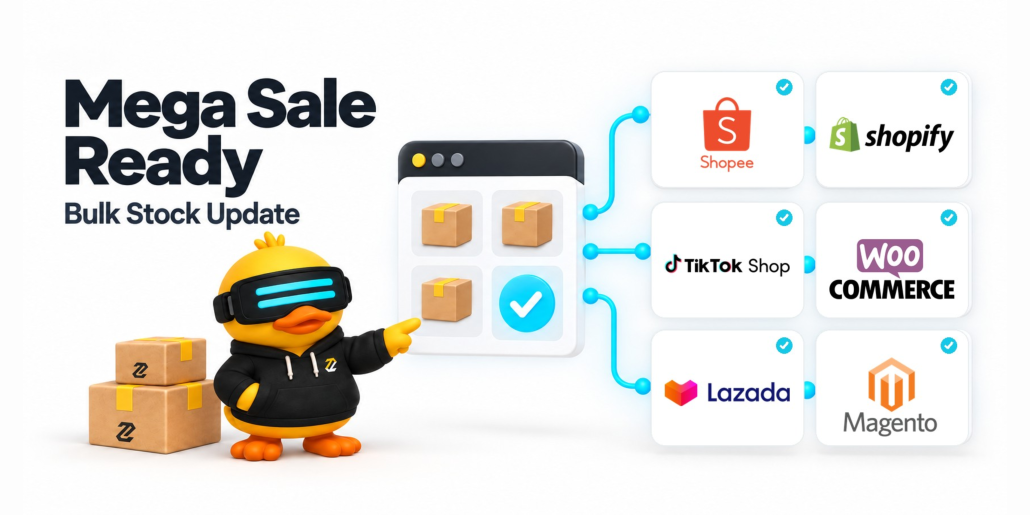
Preparing for a Mega Sale? Update Stock Across Your Sales Channels With Zetpy

Your promotions are ready. Your campaign products are selected. Your team is preparing for more orders.

But have you checked your stock quantities?

Before a mega sale, make sure your online listings reflect the stock you can fulfil. Outdated quantities can lead to overselling, cancelled orders, and extra work for your team during an already busy period.

Zetpy helps you manage inventory centrally and sync stock across connected sales channels such as Shopee, TikTok Shop, Lazada, Shopify, WooCommerce and Magento. It helps reducing the need to update each store manually. Learn more about Zetpy’s inventory management.

Start with an accurate stock count

A stock update is only as useful as the numbers you enter. Before preparing your campaign inventory:

  1. Count your campaign products, including each size and colour.
  2. Check for damaged items that cannot be sold.
  3. Reconcile pending orders and recent stock movements.
  4. Confirm that newly received stock is ready for fulfilment.

Prioritise your best sellers and promotional items. Finding a stock discrepancy before the sale gives your team time to resolve it before customers start ordering.

Also check your product SKUs, the codes used to identify individual products and variations. The same item should use the same SKU across marketplaces so Zetpy can match it correctly. See our Zetpy setup guide.


How to bulk update stock in Zetpy

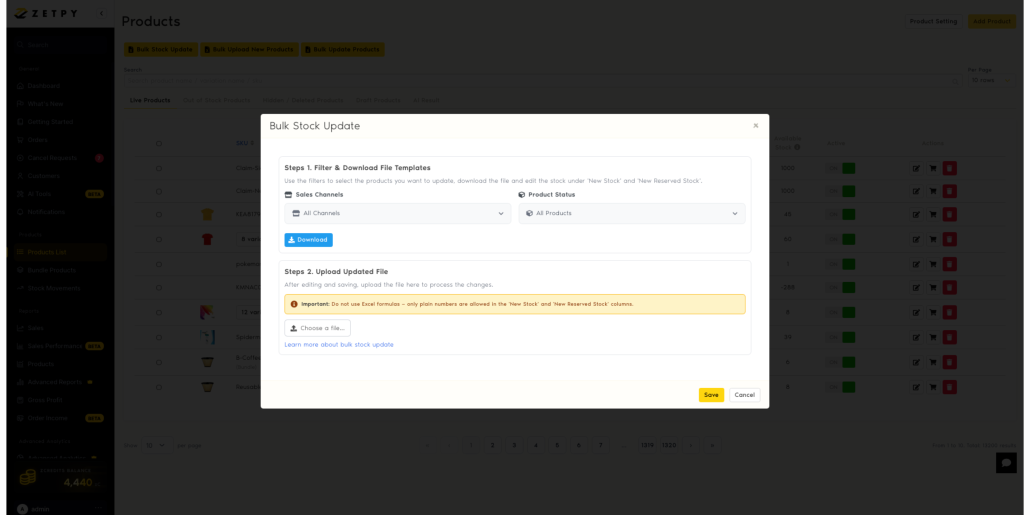
Update multiple products using an Excel file with Zetpy’s Bulk Stock Update feature.

  1. Open Bulk Stock Update. Go to Products List and click Bulk Stock Update.
  2. Filter your products (optional). Use Sales Channels and Product Status to automatically include only products matching your selections in the downloaded file. When you upload the updated file, Zetpy will update those products’ stock across all their connected sales channels, not just the channel used to filter. Leave All Channelsand All Products selected to include everything.
  3. Download a fresh template. Click Download. Files are split into batches of 1,000 SKUs.
  4. Enter your quantities. Fill in New Stock and, optionally, New Reserved Stock. Use numbers without formulas. Keep headers and other data unchanged.
  5. Upload your file. Save it, then click Choose a File.
  6. Review the result. For partial updates, check the errors and correct skipped rows using the latest template.
  7. Check your stock. Refresh the Product List and upload any remaining files.

Important: New Stock replaces the current quantity. Entering 50 sets stock to 50; it does not add 50 units.

For screenshots and full instructions, follow our How to Bulk Update Stock Quantity in Zetpy tutorial.


Check your listings before the sale starts

After updating your stock, review your campaign listings across your connected stores. Give extra attention to products with multiple variations and items expected to sell quickly.

Make stock preparation a scheduled task before the campaign, with time to investigate any discrepancies. Assign one team member to coordinate the update so everyone knows which quantities have been checked.

During the sale, continue monitoring fast-selling items and incoming orders. A pre-sale stock update gives you a stronger starting point, while ongoing checks help your team respond as inventory changes.


Get your stock ready before the orders arrive

Mega sale preparation goes beyond discounts and advertising. Accurate inventory helps your team plan fulfilment and gives customers a clearer picture of what they can buy.

Ready to prepare your campaign stock? Open Zetpy and use the bulk stock update tutorial to get started.


Want to learn more about Zetpy’s Inventory and Order Sync Features? Book a Free Demo today!

How to Customize Packing Lists and Pick Lists in Zetpy

Customize Packing Lists and Pick Lists in Zetpy for Clearer Order Fulfilment

A customer orders a black T-shirt in size M. Your team packs a black T-shirt in size L.

The product looks almost identical. The parcel leaves on time. But a missed detail can turn a completed order into a return, a replacement, and extra work for your team.

Clear picking and packing documents help your staff know what to collect and what to check before sealing a parcel.

This guide explains how to customise packing lists and pick lists in Zetpy, with a practical checklist you can use to review your own workflow.

Quick answer: In Zetpy, go to Order > Setting, find the packing list or picklist specifications, select the details you need, review the preview, and save. View the official setup guide.


What is the difference between a packing list and a pick list?

A pick list helps your team collect products from storage. A packing list helps your team check the items being prepared for an individual order.

They support different stages of order fulfilment:

Document When your team uses it Main question it answers
Pick list While collecting products “Which items do I need to pick?”
Packing list While checking and packing an order “Does this parcel contain the correct items?”

For example, a picker collecting several similar shirts needs clear product and variation details. The person packing the parcel needs to check that the selected items match the customer’s order.

Using both documents gives your team a clearer handover between picking and packing.


What details can you customise in Zetpy?

Zetpy documents these options:

Available on both lists Packing list options Pick list options
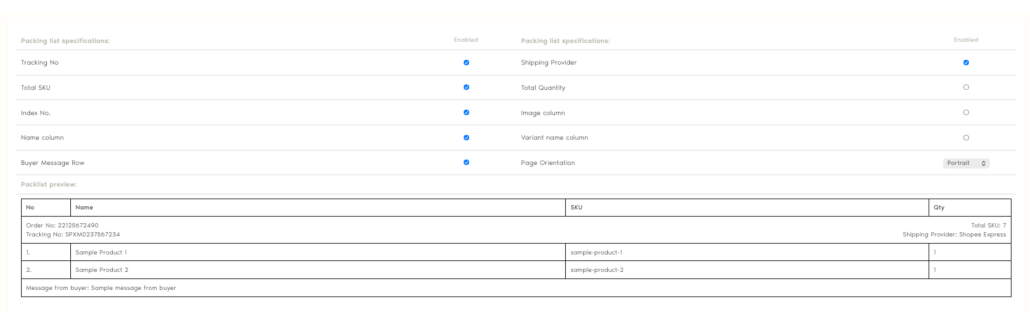
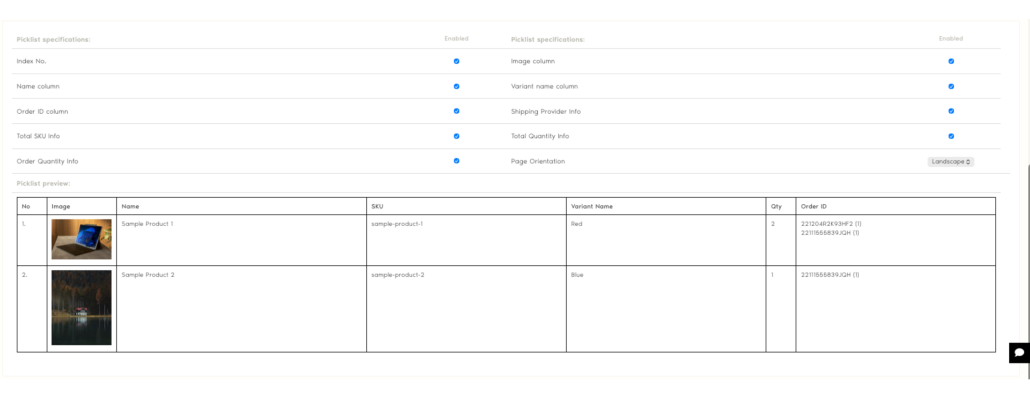
Index number, product image, product name, variation name, shipping provider, total SKU, total quantity, and portrait or landscape orientation Tracking number and buyer message Order ID and order quantity

SKU means stock keeping unit, a code used to identify a particular product or variation.

The goal is to make the details your team relies on easy to find. A useful document should support a quick, confident check at the point where the work happens.


How to customise your packing list in Zetpy

  1. Open Order > Setting.
  2. Find the packing list specifications.
  3. Select the information and page orientation you want.
  4. Review the sample preview.
  5. Click Save.


How to customise your pick list in Zetpy

  1. Open Order > Setting.
  2. Find the picklist specifications.
  3. Choose the information and page orientation.
  4. Check the preview.
  5. Click Save.


How do you choose the right details for your team?

Start with the questions your staff ask most often during fulfilment.

“Which size or colour should I pick?”

Make variation details easy to read.

This is especially useful when your products look similar, such as clothing in different sizes or accessories with several finishes. Train staff to check the written variation rather than relying on appearance alone.

“How many units belong in this parcel?”

Build a quantity check into the packing process.

A correct product can still become an incorrect order if the parcel contains one unit when the customer ordered two. Check the physical items against the order before sealing the package.

“Which order does this item belong to?”

Make the handover between picking and packing explicit.

When several orders are being prepared together, keep each order’s items clearly separated. Agree on how your team will identify an order at the packing station so staff do not have to guess.

“Is this page easy to read?”

Test the printed document in the place where it will be used.

A layout that looks clear on a screen may be harder to scan beside a busy packing bench. Ask a picker and a packer to review it using a representative order with several products and variations.

Three mistakes to avoid when setting up your lists

Relying only on product images.
Similar-looking products can have different sizes, colours, or specifications. Use images as a visual aid alongside written details.

Skipping the final quantity check.
Picking and packing are separate opportunities to catch an incorrect count. Make the final check a consistent part of your process.

Changing the layout without explaining it to staff.
Show your team where to find the details they use. A short walkthrough can prevent confusion when a familiar document changes.

Your picking and packing checklist

Use this checklist to review your workflow before the next busy sales period.

Before picking

  1. Product names are clear enough for staff to identify each item.
  2. Similar products can be distinguished by their variations.
  3. The required quantities are easy to understand.
  4. Staff know how to keep orders separated.

Before sealing a parcel

  1. Each product matches the order.
  2. Each size, colour, or other variation is correct.
  3. The number of units matches the order.
  4. Any relevant customer instructions have been checked.
  5. The parcel is matched to the correct shipping label.

After changing your document layout

  1. A representative order has been reviewed.
  2. A printed sample is readable at the packing station.
  3. Both picking and packing staff understand the layout.


Frequently asked questions

Do small e-commerce teams need both a pick list and a packing list?

Both can be useful, even when the same person picks and packs. They create two distinct checks: collecting the required products and confirming the contents of the parcel.

Can a packing list replace a shipping label?

A packing list describes an order’s contents. A shipping label provides delivery and routing information. They serve different purposes.

Will clearer lists eliminate packing errors?

Clearer documents can support more consistent checks, but accuracy also depends on product identification, staff training, and how orders are handled.

When should I review my picking and packing workflow?

Review it when staff repeatedly ask the same questions, similar variations cause confusion, or incorrect quantities reach the packing station. These are useful signals that your documents or checking process need attention.


Make your next order easier to check

Start with one representative order. Follow it from picking to packing and note every point where someone needs to stop, ask a question, or double-check a detail.

Use those observations to improve your document layout and your team’s checks.

Need help setting up your lists? Contact Zetpy Support and tell us where your team gets stuck during picking or packing.

🔔 Important Notice: Urgent System Security Update

Dear Valued Customers,

Zetpy will perform an urgent PHP security update to address recently disclosed critical vulnerabilities. This update helps keep our system secure and protect your data.

Scheduled Update Details

• Date: Thursday, 22 October 2026
• Time: 11:00 AM (Malaysia Time)
• Expected Service Interruption: Approximately 30 minutes

Zetpy may be temporarily unavailable during the update. The actual interruption may vary depending on server load and update progress.

We apologise for the short notice. Due to the critical nature of these vulnerabilities, the update needs to be applied promptly.

Thank you for your patience and understanding as we work to keep Zetpy secure and reliable.

Zetpy Team

Reference: PHP Security Advisory from Laravel Forge

Which System Should Be Your Inventory Master?

Managing inventory becomes more difficult when you sell through physical stores, marketplaces, and webstores.

Your POS may show 20 units of a product. Your accounting software may show 18. Shopee, Lazada, or your webstore may display a different quantity again.

When these figures do not match, which one should your team trust?

Every omnichannel retailer needs an inventory master system. This is the main business system that holds the official stock figure. All connected sales channels should receive their inventory information from this source.

For most retailers, the inventory master should be one of three systems:

  1. Your POS system
  2. Your accounting software
  3. Your ERP system

The right choice depends on where your stock movements happen, which team controls inventory, and how complex your operations are.

What Is an Inventory Master System?

An inventory master system is the main source of truth for your stock quantities.

It controls or records important inventory movements such as:

  1. Goods received from suppliers
  2. Sales and stock deductions
  3. Customer returns
  4. Order cancellations
  5. Warehouse and outlet transfers
  6. Damaged or missing stock
  7. Stock adjustments
  8. Physical stock counts
  9. Reserved stock

Other systems may keep copies of the inventory figure, but the master system has final authority.

For example, your inventory master shows 20 units of a product. A customer buys one unit through a marketplace. The order flows back to the master system, which deducts the sale and changes the official stock figure to 19.

The updated quantity can then be sent to your other connected marketplaces, webstores, and retail channels.

This creates a clear inventory flow:

Sale takes place → Order returns to the master system → Master stock is updated → New quantity is sent to all sales channels

Why Your Business Needs One Inventory Master

Problems begin when several systems can independently change the official stock quantity.

Consider this example:

  1. Your POS records an in-store sale and deducts one unit.
  2. Your accounting software imports the same transaction and deducts another unit.
  3. A team member manually changes the quantity on a marketplace.
  4. A connector sends an older stock figure to the webstore.
  5. Every system begins showing a different quantity.

This can lead to:

  1. Overselling
  2. Cancelled customer orders
  3. Incorrect replenishment decisions
  4. Unnecessary stock transfers
  5. Confusing inventory reports
  6. Repeated manual corrections
  7. Time-consuming investigations

It is normal for several systems to display inventory. The problem occurs when several systems believe they control it.

Your business needs one clear rule: only the inventory master determines the official stock figure.

Should Your POS, Accounting Software, or ERP Be the Inventory Master?

The best inventory master is usually the system closest to the physical movement of your stock.

Here is a simple comparison:

System Often suitable for Main consideration
POS Store-led retailers Strong control over counter sales and store inventory
Accounting software Smaller businesses with straightforward inventory Connects purchasing, inventory, and financial records
ERP Larger retailers with complex operations Controls stock across warehouses, locations, and business units

Let us look at each option more closely.

Option 1: Use Your POS as the Inventory Master

A point-of-sale system can be a suitable inventory master for a store-led retail business.

Your POS may be the right choice if:

  1. Physical outlets generate most of your sales.
  2. Store employees receive stock through the POS.
  3. The POS tracks inventory by outlet.
  4. Your team records transfers and adjustments in the POS.
  5. Online and in-store sales use the same stock.
  6. Physical stock counts are performed in the POS.

The main advantage is speed. When a customer buys an item at the counter, the POS can immediately reduce the available quantity.

This matters when the same item is also listed on marketplaces and webstores. The latest POS quantity can be sent to those channels to reduce the risk of selling stock that is no longer available.

Option 2: Use Your Accounting Software as the Inventory Master

Accounting software can work as the inventory master for a smaller business with simple stock operations.

This setup may suit your business if:

  1. Purchasing is managed in the accounting system.
  2. Goods received are recorded there first.
  3. The finance or administration team controls stock adjustments.
  4. You operate a small number of outlets or warehouses.
  5. Your product and stock structure is straightforward.
  6. Sales transactions can be sent back to the accounting software reliably.

Keeping purchasing, inventory, and financial records in the same system can make reconciliation easier. Your team can compare stock movements with supplier purchases, sales, and other accounting records.


Option 3: Use Your ERP as the Inventory Master

An enterprise resource planning system, or ERP, is often the best inventory master for larger retailers and businesses with complex supply chains.

An ERP may be suitable if you manage:

  1. Multiple warehouses
  2. Several retail outlets
  3. Multiple business entities
  4. Wholesale and retail orders
  5. Complex purchasing processes
  6. Stock transfers between locations
  7. Product assembly or manufacturing
  8. Detailed approval processes
  9. High transaction volumes
  10. Centralized supply chain planning

An ERP can connect inventory with purchasing, warehouse operations, fulfilment, finance, and reporting. This makes it a logical source of truth when many departments affect stock.

ERP integrations need clear planning

An ERP may offer strong inventory control, but the integration workflow can be more complex.

Your team must decide how to process:

  1. New marketplace and webstore orders
  2. Unpaid or unconfirmed orders
  3. Customer cancellations
  4. Returns and refunds
  5. Failed deliveries
  6. Reserved stock
  7. Bundles and promotional sets
  8. Stock transfers
  9. Inventory adjustments

These rules should be agreed upon before connecting your ERP to multiple sales channels.

How to Choose the Right Inventory Master System

Do not choose a system simply because it is the newest or most familiar. Choose the one that best represents what physically happens to your stock.

Ask the following questions.

1. Where are goods received?

The system that records incoming goods is often a strong candidate.

Your stock should not become available for sale until your team has physically received, checked, and confirmed it. The inventory master should reflect this process accurately.

2. Where are most sales recorded?

If most sales happen in retail outlets, your POS may be the most practical master.

If sales come from many sources and pass through complex warehouse or finance processes, your ERP or accounting system may be more suitable.

3. Which system understands every stock location?

Your inventory master should know where the stock is located.

This may include:

  1. Retail outlets
  2. Main warehouses
  3. Regional warehouses
  4. Fulfilment centres
  5. Goods-in-transit locations
  6. Damaged-goods areas
  7. Return-processing areas

A single total quantity may not be enough if different channels sell from different locations.

4. Which system records every stock movement?

The master system should receive all events that increase or decrease inventory.

These include purchases, sales, transfers, returns, cancellations, damaged goods, and manual adjustments.

If a system misses some of these events, it cannot maintain an accurate stock figure.

5. How quickly can the system update inventory?

The required speed depends on your sales volume.

A retailer that sells a few orders per day may manage with scheduled updates. A high-volume omnichannel retailer may need much faster synchronization.

Slow updates increase the risk that two channels will sell the final available unit at the same time.

6. Can it handle returns and cancellations correctly?

Inventory does not only decrease.

A cancelled order, returned item, rejected delivery, or failed payment may cause stock to become available again. Your master system needs clear rules for when that stock can be resold.

Returned items should not automatically become available if they still require inspection.

7. Which team owns inventory accuracy?

Technology alone cannot keep inventory accurate.

Your warehouse, retail, operations, or finance team must record stock movements correctly. Choose a system that the responsible team already uses and understands.

The business should also name an inventory owner who is responsible for investigating differences and approving adjustments.

8. Can it connect with your sales channels?

Your inventory master must share stock information with the places where you sell.

It also needs to receive orders from those channels so that it can update the official quantity.

If direct integrations are limited, an omnichannel platform such as Zetpy can connect the master system with marketplaces and webstores.

Rules That Prevent Conflicting Stock Updates

Choosing the right inventory master is only the first step. You also need clear rules for how systems and employees update stock.

Rule 1: Give One System Final Authority

Only the inventory master should decide the official stock quantity.

Marketplaces and webstores can display the available quantity. They can also send orders back to the business. However, they should not independently control or overwrite the main stock figure.

Rule 2: Define the Direction of Every Data Flow

Document where each type of information begins and where it goes.

For example:

  1. Inventory quantity: Master system → Zetpy → Sales channels
  2. Online orders: Sales channels → Zetpy → Master system
  3. In-store sales: POS → Master system, if the POS is not already the master
  4. Goods received: Purchasing process → Master system
  5. Stock adjustments: Authorized team → Master system

Avoid sending the same inventory update through several different routes. This can create update loops, delays, and conflicting figures.

Rule 3: Separate Physical Stock From Available Stock

Physical stock and available stock are not always the same.

For example, you may physically have 20 units, but:

  1. Three units are reserved for confirmed orders.
  2. Two units are damaged.
  3. One unit is being transferred.
  4. Two units are kept as a safety buffer.

Your available quantity may therefore be only 12 units.

Define how your inventory master calculates available stock before sending quantities to sales channels.

Rule 4: Use Reserve Stock Where Necessary

You may not want to publish every available unit online.

For example, if your master system shows 10 available units, you may publish only eight. The remaining two units act as a safety buffer for delayed updates, stock damage, or simultaneous store sales.

Safety stock can reduce risk, but it does not replace accurate inventory synchronization.

Rule 5: Control Manual Inventory Changes

Employees should avoid changing quantities directly on individual marketplaces or webstores.

A manual change may be overwritten during the next synchronization. It can also create a difference that is difficult to investigate later.

Whenever possible, make the adjustment in the inventory master and let the updated figure flow to all connected channels.

If an emergency manual change is necessary, record who made it, why it was made, and how the master system will be corrected.

Rule 6: Prevent Duplicate Stock Deductions

A single sale should reduce stock only once.

For example, if an online order passes through Zetpy before reaching the ERP, the ERP should not receive the same order again through a second connection.

Use unique order references and clear integration routes to prevent duplicate transactions.

Rule 7: Create a Process for Failed Updates

No integration is completely free from interruptions.

Your team should know:

  1. How failed updates are reported
  2. Who is responsible for checking them
  3. Whether the system retries automatically
  4. How to correct rejected orders
  5. How to reconcile stock after an outage
  6. When online selling should be paused

A clear recovery process helps prevent a temporary connection issue from becoming a larger inventory problem.

Rule 8: Review Inventory Differences Regularly

Compare three figures regularly:

  1. The physical quantity
  2. The inventory master quantity
  3. The quantity published to sales channels

If the figures differ, investigate the cause before making another adjustment.

Repeated differences may point to a larger issue, such as duplicate orders, missing returns, delayed updates, incorrect product mappings, or unrecorded stock movements.

How Zetpy Connects Your Inventory Master With Sales Channels

Your POS, accounting software, or ERP should remain the inventory master. Zetpy can help connect that system with your marketplaces and webstores.

A typical workflow may look like this:

  1. Your POS, accounting software, or ERP holds the official stock figure.
  2. Zetpy receives product and inventory information from the master system.
  3. Zetpy sends the available quantity to connected marketplaces and webstores.
  4. A customer places an order through one of those channels.
  5. The order flows through Zetpy to the inventory master.
  6. The master system processes the sale and deducts the stock.
  7. Zetpy receives the latest quantity.
  8. The updated quantity is sent to the connected sales channels.

This keeps inventory authority inside the system that controls your business operations.

Zetpy acts as the connection layer between that master system and the places where you sell. Depending on your setup and available integrations, this can help your team:

  1. Reduce manual inventory updates
  2. Maintain more consistent quantities across channels
  3. Lower the risk of overselling
  4. Connect online orders with retail or back-office operations
  5. Process marketplace and webstore orders more efficiently
  6. Create clearer responsibilities between systems
  7. Spend less time correcting stock differences

The exact workflow depends on your software, sales channels, locations, and operating rules. Map the complete process before activating automated stock updates.

Final Recommendation

Your inventory master should be the POS, accounting software, or ERP system that most accurately reflects the physical movement of your stock.

Choose your POS if your operations are mainly led by retail outlets. Consider your accounting software if your inventory process is straightforward and closely connected to purchasing and finance. Choose an ERP if you manage complex warehouses, locations, supply chains, or transaction volumes.

Marketplaces and webstores should receive inventory from the chosen master. They should not control the main stock figure.

Whichever system you select, follow three basic principles:

  • Maintain one official source of inventory.
  • Define clear directions for every update.
  • Send all sales back to the master system.

Zetpy can help connect your chosen inventory master with marketplaces and webstores, creating a clearer omnichannel inventory workflow.

Want to connect your POS, accounting software, or ERP with your online sales channels? Contact Zetpy to discuss an inventory workflow that fits your business.

Frequently Asked Questions

What is an inventory master system?

An inventory master system is the main source of truth for stock quantities. It controls the official inventory figure and shares that information with connected sales channels.

Which system should be the inventory master?

The inventory master should usually be your POS, accounting software, or ERP. The right choice depends on where stock movements are recorded, how many locations you manage, and how complex your operations are.

Can a marketplace or webstore be the inventory master?

For an omnichannel retail setup, marketplaces and webstores should act as sales channels. They should receive inventory from the chosen POS, accounting system, or ERP and return orders for processing.

Is a POS suitable as an inventory master?

A POS can be suitable for store-led retailers when it records counter sales, goods received, stock transfers, adjustments, and inventory by outlet.

When should an ERP be the inventory master?

An ERP is often suitable when a business has multiple warehouses, complex purchasing, several entities, manufacturing, wholesale orders, or detailed supply chain processes.

Can accounting software be the inventory master?

Yes, accounting software can work for businesses with straightforward inventory operations. It must be able to receive orders, update stock promptly, manage different stock movements, and share accurate quantities with connected systems.

How does Zetpy support the inventory master?

Zetpy can connect the chosen POS, accounting software, or ERP with marketplaces and webstores. It helps inventory updates move to sales channels while orders return to the master system for processing.

11:16 AM

Managing inventory becomes more difficult when you sell through physical stores…

add in the point where when the order from. marketplace it flow back through the master system. there might be delay, the is where zetpy can help as zetpy will deduct the invcentory in online marketplace first when order initially came in. master sysm like pos and accounting will then be deducted when order flow back into the master platform

1:13 PM

Worked for 48s

Replace the current “How Zetpy Connects Your Inventory Master With Sales Channels” section with the following:

How Zetpy Helps During the Order Sync Delay

Your POS, accounting software, or ERP remains the inventory master. However, a marketplace order may take some time to flow back into that system.

This delay creates a risk. If the available quantity is not updated quickly, another customer may purchase the same stock through a different marketplace or webstore.

Zetpy helps manage this timing gap.

When an online order first arrives in Zetpy, Zetpy immediately reduces the available online inventory and sends the updated quantity to the connected sales channels. The order then flows back to the inventory master for processing.

Once the order reaches the POS, accounting software, or ERP, the master system records the sale and deducts the quantity from its official inventory figure.

For example, your inventory master shows 20 units:

  1. Zetpy receives an order for one unit from a marketplace.
  2. Zetpy immediately reduces the available online quantity from 20 to 19.
  3. Zetpy sends the new available quantity to the other connected marketplaces and webstores.
  4. The order flows from Zetpy into the inventory master.
  5. The inventory master records the sale and updates its official quantity from 20 to 19.
  6. The latest master quantity is synchronized through Zetpy to the connected sales channels.

This is not a duplicate stock deduction. Zetpy first adjusts the quantity available for online selling. The master system later records the official inventory movement when it receives the order.

This two-stage process helps reduce the chance of overselling while orders are still being transferred to the inventory master.

The inventory flow becomes:

Marketplace order received → Zetpy reduces online available stock → Updated quantity is sent to connected channels → Order flows to the inventory master → Master system records the official deduction

Depending on your system setup and available integrations, this can help your team:

  • Respond to online orders more quickly
  • Reduce overselling during synchronization delays
  • Keep marketplace and webstore quantities aligned
  • Maintain the POS, accounting software, or ERP as the official inventory master
  • Connect online orders with retail and back-office operations
  • Reduce manual inventory updates

The exact workflow depends on your software, sales channels, and integration setup. Your team should map the complete order and inventory flow before activating automated updates.

Also replace the earlier example under “What Is an Inventory Master System?” with:

For example, your inventory master shows 20 units of a product. A customer buys one unit through a marketplace. Zetpy first reduces the inventory available across the connected online channels. The order then flows back to the inventory master, which records the official stock deduction and updates its quantity to 19.

And update the inventory flow line to:

Marketplace sale → Zetpy reduces online available stock → Order returns to the master system → Master stock is updated → Latest quantity is synchronized to connected sales channels

1:14 PM

update into the article i pasted and make them flow better

1:16 PM

Worked for 2m 47s

Updated the full article and improved the flow throughout.

The revised version clearly explains that:

  • Zetpy reduces the available online inventory immediately when an order arrives.
  • This protects stock during the delay before the order reaches the master system.
  • The POS, accounting software, or ERP later records the official deduction.
  • These are two stages of one transaction, not duplicate stock deductions.
  • Marketplaces and webstores remain sales channels, not inventory masters.

[Download the updated article](/Users/adrian/Documents/Codex/2026-09-02/3-which-system-should-be-your/outputs/inventory-master-system-article.md)

Edited inventory-master-system-article.md+319-0Review changes

UndoReview

1:18 PM

`tyoe uit here

1:19 PM

Which System Should Be Your Inventory Master?

Meta description: Learn whether your POS, accounting software, or ERP should be the inventory master system for your omnichannel retail business.

Suggested URL slug: /choose-inventory-master-system

Managing inventory becomes more difficult when you sell through physical stores, marketplaces, and webstores.

Your POS may show 20 units of a product. Your accounting software may show 18. Shopee, Lazada, or your webstore may display a different quantity again.

When these figures do not match, which one should your team trust?

Every omnichannel retailer needs an inventory master system. This is the main business system that holds the official stock figure and receives orders from your connected sales channels.

For most retailers, the inventory master should be one of three systems:

  • Your POS system
  • Your accounting software
  • Your ERP system

The right choice depends on where stock movements happen, which team controls inventory, and how complex your operations are.

What Is an Inventory Master System?

An inventory master system is the main source of truth for your stock quantities.

It controls or records important inventory movements such as:

  • Goods received from suppliers
  • Sales and stock deductions
  • Customer returns
  • Order cancellations
  • Warehouse and outlet transfers
  • Damaged or missing stock
  • Stock adjustments
  • Physical stock counts
  • Reserved stock

Other systems may display or temporarily reserve inventory, but the master system has final authority over the official stock figure.

For example, your inventory master shows 20 units of a product. A customer buys one unit through a marketplace. Zetpy receives the order and immediately reduces the quantity available across your connected online sales channels from 20 to 19.

The order then flows back through Zetpy to the inventory master. When the POS, accounting software, or ERP receives the order, it records the sale and updates the official stock figure from 20 to 19.

This creates a clear inventory flow:

Marketplace order received → Zetpy reduces available online stock → Updated quantity is sent to connected channels → Order flows to the master system → Master system records the official deduction

This is not a duplicate deduction. Zetpy first adjusts the quantity available for online selling. The master system later records the official stock movement when it receives the order.

Why Your Business Needs One Inventory Master

Problems begin when several systems can independently change the official stock quantity.

Consider this example:

  1. Your POS records an in-store sale and deducts one unit.
  2. Your accounting software imports the same transaction and deducts another unit.
  3. A team member manually changes the quantity on a marketplace.
  4. A connector sends an older stock figure to the webstore.
  5. Every system begins showing a different quantity.

This can lead to:

  • Overselling
  • Cancelled customer orders
  • Incorrect replenishment decisions
  • Unnecessary stock transfers
  • Confusing inventory reports
  • Repeated manual corrections
  • Time-consuming investigations

It is normal for several systems to display inventory. The problem occurs when several systems believe they control the official figure.

Your business needs one clear rule: only the inventory master determines the official stock quantity.

Should Your POS, Accounting Software, or ERP Be the Inventory Master?

The best inventory master is usually the system closest to the physical movement of your stock.

System Often suitable for Main consideration
POS Store-led retailers Strong control over counter sales and store inventory
Accounting software Smaller businesses with straightforward inventory Connects purchasing, inventory, and financial records
ERP Larger retailers with complex operations Controls stock across warehouses, locations, and business units

Let us look at each option more closely.

Option 1: Use Your POS as the Inventory Master

A point-of-sale system can be a suitable inventory master for a store-led retail business.

Your POS may be the right choice if:

  • Physical outlets generate most of your sales.
  • Store employees receive stock through the POS.
  • The POS tracks inventory by outlet.
  • Your team records transfers and adjustments in the POS.
  • Online and in-store sales use the same stock.
  • Physical stock counts are performed in the POS.

The main advantage is speed. When a customer buys an item at the counter, the POS can immediately reduce the available quantity.

This matters when the same item is also listed on marketplaces and webstores. The latest POS quantity can be sent through Zetpy to those channels, reducing the risk of selling stock that is no longer available.

Option 2: Use Your Accounting Software as the Inventory Master

Accounting software can work as the inventory master for a smaller business with simple stock operations.

This setup may suit your business if:

  • Purchasing is managed in the accounting system.
  • Goods received are recorded there first.
  • The finance or administration team controls stock adjustments.
  • You operate a small number of outlets or warehouses.
  • Your product and stock structure is straightforward.
  • Sales transactions can be sent back to the accounting software reliably.

Keeping purchasing, inventory, and financial records in the same system can make reconciliation easier. Your team can compare stock movements with supplier purchases, sales, and other accounting records.

However, orders may take time to flow from a marketplace into the accounting system. During this gap, Zetpy can reduce the available online quantity as soon as the order arrives, while the accounting system processes the official deduction when it receives the order.

Option 3: Use Your ERP as the Inventory Master

An enterprise resource planning system, or ERP, is often the best inventory master for larger retailers and businesses with complex supply chains.

An ERP may be suitable if you manage:

  • Multiple warehouses
  • Several retail outlets
  • Multiple business entities
  • Wholesale and retail orders
  • Complex purchasing processes
  • Stock transfers between locations
  • Product assembly or manufacturing
  • Detailed approval processes
  • High transaction volumes
  • Centralized supply chain planning

An ERP can connect inventory with purchasing, warehouse operations, fulfilment, finance, and reporting. This makes it a logical source of truth when many departments affect stock.

ERP order-processing workflows can involve several steps. Zetpy can help protect the available online quantity while an online order is being transferred to and processed by the ERP.

How to Choose the Right Inventory Master System

Do not choose a system simply because it is the newest or most familiar. Choose the one that best represents what physically happens to your stock.

Ask the following questions.

1. Where are goods received?

The system that records incoming goods is often a strong candidate.

Your stock should not become available for sale until your team has physically received, checked, and confirmed it. The inventory master should reflect this process accurately.

2. Where are most sales recorded?

If most sales happen in retail outlets, your POS may be the most practical master.

If sales come from many sources and pass through warehouse or finance processes, your ERP or accounting system may be more suitable.

3. Which system understands every stock location?

Your inventory master should know where the stock is located. This may include:

  • Retail outlets
  • Main warehouses
  • Regional warehouses
  • Fulfilment centres
  • Goods-in-transit locations
  • Damaged-goods areas
  • Return-processing areas

A single total quantity may not be enough if different channels sell from different locations.

4. Which system records every stock movement?

The master system should receive all events that increase or decrease inventory.

These include purchases, sales, transfers, returns, cancellations, damaged goods, and manual adjustments. If a system misses some of these events, it cannot maintain an accurate stock figure.

5. How quickly can the system update inventory?

The required speed depends on your sales volume.

A retailer that processes a few orders per day may manage with scheduled updates. A high-volume omnichannel retailer may need much faster synchronization.

Even with a well-connected master system, an online order may take time to transfer and process. Your inventory workflow should account for this timing gap so the same stock is not offered to another online customer while the first order is still moving to the master system.

6. Can it handle returns and cancellations correctly?

Inventory does not only decrease.

A cancelled order, returned item, rejected delivery, or failed payment may cause stock to become available again. Your master system needs clear rules for when that stock can be resold.

Returned items should not automatically become available if they still require inspection.

7. Which team owns inventory accuracy?

Technology alone cannot keep inventory accurate.

Your warehouse, retail, operations, or finance team must record stock movements correctly. Choose a system that the responsible team already uses and understands.

The business should also name an inventory owner who investigates differences and approves adjustments.

8. Can it connect with your sales channels?

Your inventory master must share stock information with the places where you sell. It also needs to receive orders from those channels so it can update the official quantity.

If direct integrations are limited, Zetpy can connect the master system with marketplaces and webstores while helping manage available online inventory during the order-sync process.

Rules That Prevent Conflicting Stock Updates

Choosing the right inventory master is only the first step. You also need clear rules for how systems and employees update stock.

Rule 1: Give One System Final Authority

Only the inventory master should decide the official stock quantity.

Zetpy can adjust the quantity available to connected online sales channels when an order arrives. The POS, accounting software, or ERP still remains the official source of truth and records the final inventory movement.

Rule 2: Define the Direction of Every Data Flow

Document where each type of information begins and where it goes.

For example:

  • Inventory quantity: Master system → Zetpy → Sales channels
  • Online orders: Sales channels → Zetpy → Master system
  • Goods received: Purchasing process → Master system → Zetpy → Sales channels
  • Stock adjustments: Authorized team → Master system → Zetpy → Sales channels

Avoid sending the same order or inventory update through several different routes. This can create update loops, delays, and conflicting figures.

Rule 3: Manage the Timing Gap for Online Orders

An online order may not appear in the inventory master immediately. It may need to pass through an integration and complete several processing steps first.

During this gap, the original quantity may still be available on other sales channels. This increases the risk of overselling, especially when stock is low or order volume is high.

With Zetpy, the available online quantity can be reduced as soon as the marketplace order is received. The updated quantity is then sent to the other connected online channels while the order continues to the master system.

When the master system receives the order, it records the official stock deduction. Zetpy is therefore protecting the online available quantity during the delay, while the master system remains responsible for the official inventory record.

Rule 4: Control Manual Inventory Changes

Employees should avoid changing quantities directly on individual marketplaces or webstores.

A manual change may be overwritten during the next synchronization. It can also create a difference that is difficult to investigate later.

Whenever possible, make the adjustment in the inventory master and let the updated figure flow through Zetpy to all connected channels.

If an emergency manual change is necessary, record who made it, why it was made, and how the master system will be corrected.

Rule 5: Prevent Duplicate Order Processing

A single sale should be recorded only once in the inventory master.

For example, if an online order passes through Zetpy before reaching the ERP, the ERP should not receive the same order again through another connection. Otherwise, the master system may deduct the same sale twice.

Use one defined order route and a unique order reference to prevent duplicate processing.

How Zetpy Connects Your Inventory Master With Sales Channels

Your POS, accounting software, or ERP should remain the inventory master. Zetpy connects that system with your marketplaces and webstores while helping manage the timing gap between an online sale and the final update in the master system.

A typical workflow may look like this:

  1. Your POS, accounting software, or ERP holds the official stock figure.
  2. Zetpy receives the inventory information and sends the available quantity to your connected marketplaces and webstores.
  3. A customer places an order through one of those online channels.
  4. Zetpy receives the order and immediately reduces the quantity available across the connected online channels.
  5. The order flows through Zetpy to the inventory master.
  6. The master system processes the order and records the official stock deduction.
  7. The latest master quantity flows through Zetpy to the connected sales channels.

For example, the master system and connected online channels show 20 units. A marketplace order arrives for one unit. Zetpy reduces the available online quantity to 19 and shares that quantity with the other connected online channels.

The master system may still show 20 units while the order is being transferred. Once it receives and processes the order, its official figure also becomes 19. That latest master figure is then synchronized through Zetpy.

This two-stage process does not deduct the same unit twice. It serves two different purposes:

  • Zetpy protects the available online quantity as soon as the order arrives.
  • The master system records the official stock movement when it processes the order.

This helps reduce the chance of another online customer buying the same unit during the synchronization delay. It also allows the POS, accounting software, or ERP to remain the official inventory master.

Depending on your setup and available integrations, Zetpy can help your team:

  • Reduce manual inventory updates
  • Lower the risk of overselling during order-sync delays
  • Keep marketplace and webstore quantities aligned
  • Connect online orders with retail or back-office operations
  • Process marketplace and webstore orders more efficiently
  • Maintain clear responsibilities between systems
  • Spend less time correcting stock differences

The exact workflow depends on your software, sales channels, locations, and operating rules. Map the complete process before activating automated inventory updates.

Final Recommendation

Your inventory master should be the POS, accounting software, or ERP system that most accurately reflects the physical movement of your stock.

Choose your POS if your operations are mainly led by retail outlets. Consider your accounting software if your inventory process is straightforward and closely connected to purchasing and finance. Choose an ERP if you manage complex warehouses, locations, supply chains, or transaction volumes.

Marketplaces and webstores should receive inventory from the chosen master. They should not control the official stock figure.

At the same time, your workflow must account for the delay between receiving an online order and recording it in the master system. Zetpy can reduce the available online inventory as soon as an order arrives, then send the order to the master system for the official deduction.

Whichever system you select, follow four basic principles:

  • Maintain one official source of inventory.
  • Define clear directions for every update.
  • Reduce available online stock as soon as an order is received.
  • Send every sale back to the master system for official processing.

Zetpy can help connect your chosen inventory master with marketplaces and webstores, creating a clearer and more responsive omnichannel inventory workflow.

Want to connect your POS, accounting software, or ERP with your online sales channels? Book a demo with Zetpy to discuss an inventory workflow that fits your business.

1:21 PM

October 2026 Newsletter

October 2026 Partner Newsletter

NEW: Help Your Clients See What They Earn After Marketplace Fees

Your clients know how much they sell, but do they know how much they receive after marketplace fees and deductions?

The Zetpy Order Income Report brings payout information from Shopee, TikTok Shop and Lazada into one place. Your clients can review net payouts, understand fee breakdowns and track pending payouts without checking each seller account separately.

Introduce this feature in your next client conversation to help them get a clearer view of their marketplace income.

Explore the Order Income Report and share the article with your clients.


Help Your Clients Get More from Zetpy’s AI Tools

Following our previous introduction, here’s a reminder of how Zetpy’s four AI tools can help your clients spend less time on daily tasks:

📈 AI Sales Trend Analysis: Understand sales patterns and get practical recommendations.

📦 Inventory Insight Email: Identify fast- and slow-moving products and potential restocking needs.

✍️ AI Product Description: Generate, improve and translate product descriptions faster.

🎨 AI Image Studio: Turn product photos into fresh visuals for listings and campaigns.

These features give you more reasons to reconnect with clients and highlight the value of Zetpy. Share the article with clients who could benefit, and connect interested clients with the Zetpy team for further guidance.

Explore Zetpy’s AI Tools

New Features & Major Upgrades

  • AI-Powered Product Description Generator: Added an AI tool to help you write product descriptions.
  • AI-Powered Product Image Generator: Introduced AI image generation to help you create product visuals.
  • AI Sales Trend Analysis: Added AI-powered sales trend analysis to help you understand sales patterns.
  • AI Tools Page & Credit System: Introduced a dedicated AI Tools page and an AI credit system for using Zetpy’s AI features.
  • Order Limit Top-Ups with zCredit: Added the option to purchase additional order capacity using zCredit.
  • Dashboard Permission Controls: Added Dashboard settings to User Permissions, giving you more control over access to order and sales data.

Order & Product Management Improvements

  • Faster Stock Movement Loading: Improved loading speed in Stock Movement so you can review stock changes more quickly.
  • Pick List & Packing List Layouts: Fixed layout issues caused by product names containing Chinese characters.
  • Bundle Product Sorting: Added sorting by SKU, name, and stock to help you find and organise bundle products.
  • Unified Plugins Page: Combined Installed Plugins and Add Plugins into a single Plugins page.

Marketplace Updates & Bug Fixes

Shopee

  • Product Queue Fix: Resolved an issue that caused product updates to remain stuck in Queue.
  • Product Reimport Fix: Fixed an issue that prevented items from being reimported through the Shopee plugin.
  • Variant Weight & Dimensions: Updated the integration to support weight and dimensions for individual product variants.
  • Return & Refund Status Accuracy: Fixed an issue where orders marked as Return/Refund in Shopee were updated to Completed in Zetpy.
  • Cancelled Order Status Fix: Corrected an issue where cancelled Shopee orders appeared as Return in Zetpy.

TikTok Shop

  • Airway Bill Printing Improvements: Updated the airway bill (AWB) printing method and fixed issues affecting AWB generation.
  • Split Order Status Updates: Improved status syncing for split orders.
  • Return & Refund Status Accuracy: Fixed an issue where orders marked as Return/Refund in TikTok Shop were updated to Completed in Zetpy.
  • Overselling Fix: Addressed an issue affecting TikTok Shop stock handling that could lead to overselling.

Lazada

  • Airway Bill Printing Improvements: Updated the AWB printing method for Lazada orders.
  • Split Order Tracking Fix: Resolved an issue where split order AWBs were generated with the same tracking number.
  • Missing Package Fix: Fixed an issue where a package was missing from a Lazada split order.
  • Missing Order Item Fix: Resolved an issue where an item was missing from a Lazada order in Zetpy.

Shopify

  • Refunded Order Status Fix: Corrected an issue where refunded Shopify orders remained marked as New in Zetpy.
  • Cancelled Order Status Fix: Corrected an issue where cancelled Shopify orders remained marked as New in Zetpy.
  • Order Status Sync: Fixed additional issues affecting order status updates from Shopify to Zetpy.

WooCommerce

  • Stock Sync Fix: Resolved an issue that prevented stock updates from syncing to WooCommerce stores.

Zalora

  • Product Creation Fix: Resolved an error encountered when adding new products to Zalora.

POS, Accounting & Integration Updates

AutoCount

  • Unsynced Order Error Badge: Added an error count badge to the sidebar menu for “Not Sync” orders, making it easier to spot orders that need attention.

Xilnex

  • Product List Display: Removed the price display from the Xilnex Product List.
  • Order Sync Troubleshooting: Added support for retrieving order sync payloads to help investigate sync issues.
  • GST Rate Error Fix: Resolved the “GST rate not found” error affecting order syncing.

QuickBooks

  • Duplicate Customer Name Fix: Resolved an error caused by duplicate names when creating customers during syncing.

Zetpy API

  • TikTok Shop Return & Refund Statuses: Expanded API support to include TikTok Shop return, refund, and partial return statuses.

These September updates give your team new AI tools, clearer order statuses, and smoother workflows across fulfilment, inventory, and connected business systems.

Lastly,

As we continue expanding our features to support the evolving e-commerce ecosystem, we’re committed to helping you make the most of our platform and grow your customer base. Whether you’d like to share feedback, need support, or want to explore new business opportunities, we’d love to hear from you.

Get in touch with us anytime:

💬 What Our Customers Say

Need Better Images for Your Online Listings? Meet Zetpy AI Image Studio

Ready to give your product listings a fresh look?

You already have a clear product photo, but you’d like to try a different background or show the item in a new setting.

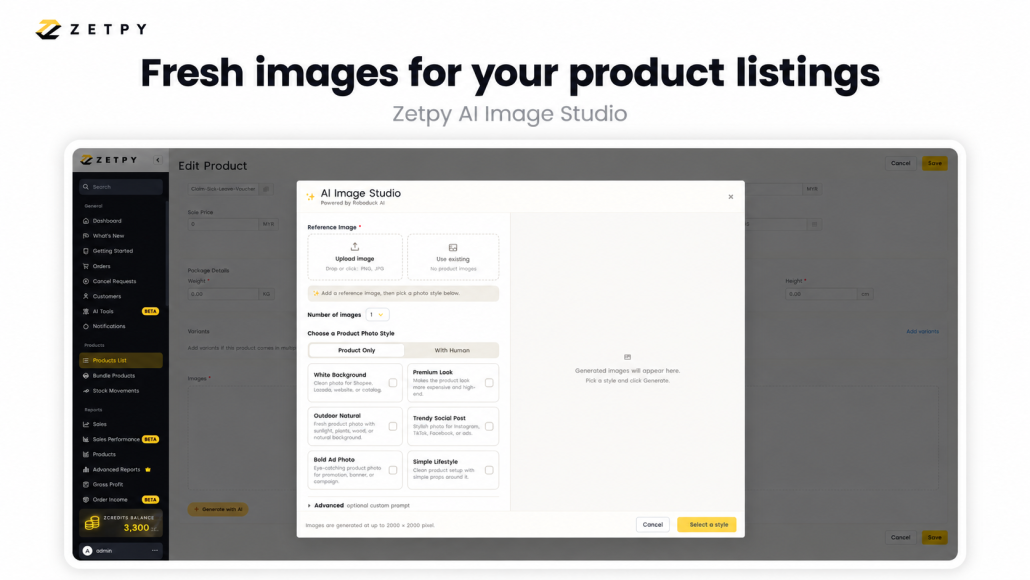
With Zetpy AI Image Studio, you can use that photo to generate new images and attach the ones you like to your product listing.


Start with a photo you already have

Open your product in Zetpy. Upload a reference photo or choose one already attached to the product.

Use a photo that clearly shows the item’s shape, colour and details. This gives you a better starting point when trying different styles.

Choose from White Background, Premium Look, Outdoor Natural, Trendy Social Post, Bold Ad Photo and Simple Lifestyle. You can also use advanced instructions to describe the look you want.

Once the images are ready, review them and select which ones to attach to your product.

See the AI Image Studio guide for the steps.


Choose a look that helps shoppers understand your product

Think about what customers need to see before they buy.

If you sell a desk organiser, a simple background can make its compartments easier to see. A desk setting can help shoppers picture how it might look in their own workspace.

The setting should support the product and keep its important details visible.


Tell it what you have in mind

Your instructions don’t need to be complicated. Describe the background, lighting and any details you want to keep visible.

For example:

Place the product on a tidy desk with a neutral background and soft lighting. Keep the compartments visible. Do not add accessories inside the organiser.

Use this as a starting point, then check whether the result matches what you asked for.


Check the details before attaching an image

Take a moment to compare the generated image with your original photo.

Does the shape look right? Is the colour accurate? Are labels and packaging shown correctly? Check for extra parts or accessories that aren’t included with the purchase.

Look at the background too. A setting might look nice but hide part of the product or make its size unclear.

If something looks off, try again. Keep the images that give shoppers a clear, accurate view of what they’ll receive.


Update your listing when you’re happy with the results

Start with one product and try a few options. You don’t need to refresh every listing at once.

After reviewing the results, attach your chosen images to the product. For products already synced to supported marketplaces, you can also push updated images to Shopee, Lazada and TikTok Shop.

The marketplace image update guide shows you how to select accounts and arrange the image order. Check the channel’s image requirements before publishing.


Want to see how it works?

We’ll walk you through choosing a reference photo, generating images and attaching your favourites to your product listing.

Book a Zetpy demo