Your promotions are ready. Your campaign products are selected. Your team is preparing for more orders.
But have you checked your stock quantities?
Before a mega sale, make sure your online listings reflect the stock you can fulfil. Outdated quantities can lead to overselling, cancelled orders, and extra work for your team during an already busy period.
Zetpy helps you manage inventory centrally and sync stock across connected sales channels such as Shopee, TikTok Shop, Lazada, Shopify, WooCommerce and Magento. It helps reducing the need to update each store manually. Learn more about Zetpy’s inventory management.
Start with an accurate stock count
A stock update is only as useful as the numbers you enter. Before preparing your campaign inventory:
- Count your campaign products, including each size and colour.
- Check for damaged items that cannot be sold.
- Reconcile pending orders and recent stock movements.
- Confirm that newly received stock is ready for fulfilment.
Prioritise your best sellers and promotional items. Finding a stock discrepancy before the sale gives your team time to resolve it before customers start ordering.
Also check your product SKUs, the codes used to identify individual products and variations. The same item should use the same SKU across marketplaces so Zetpy can match it correctly. See our Zetpy setup guide.
How to bulk update stock in Zetpy
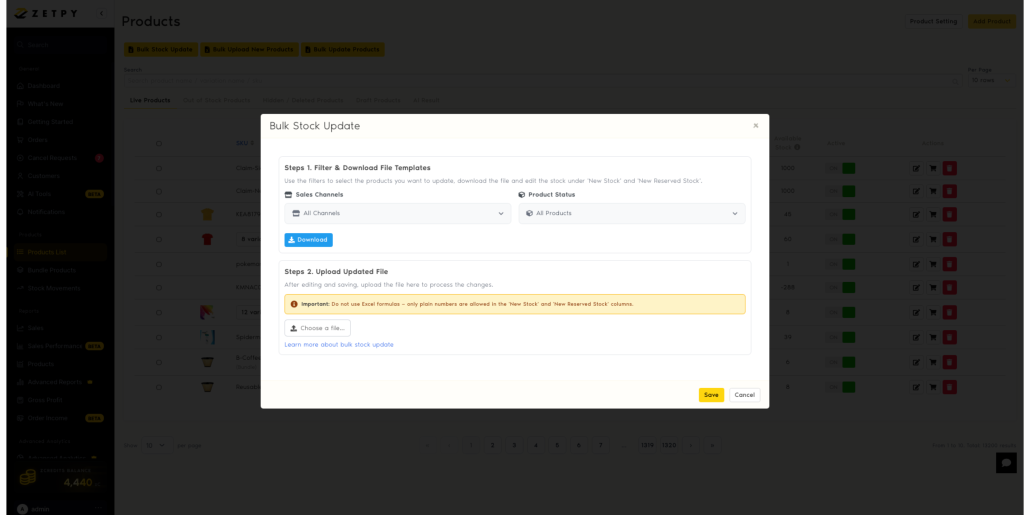
Update multiple products using an Excel file with Zetpy’s Bulk Stock Update feature.
- Open Bulk Stock Update. Go to Products List and click Bulk Stock Update.
- Filter your products (optional). Use Sales Channels and Product Status to automatically include only products matching your selections in the downloaded file. When you upload the updated file, Zetpy will update those products’ stock across all their connected sales channels, not just the channel used to filter. Leave All Channelsand All Products selected to include everything.
- Download a fresh template. Click Download. Files are split into batches of 1,000 SKUs.
- Enter your quantities. Fill in New Stock and, optionally, New Reserved Stock. Use numbers without formulas. Keep headers and other data unchanged.
- Upload your file. Save it, then click Choose a File.
- Review the result. For partial updates, check the errors and correct skipped rows using the latest template.
- Check your stock. Refresh the Product List and upload any remaining files.
Important: New Stock replaces the current quantity. Entering 50 sets stock to 50; it does not add 50 units.
For screenshots and full instructions, follow our How to Bulk Update Stock Quantity in Zetpy tutorial.
Check your listings before the sale starts
After updating your stock, review your campaign listings across your connected stores. Give extra attention to products with multiple variations and items expected to sell quickly.
Make stock preparation a scheduled task before the campaign, with time to investigate any discrepancies. Assign one team member to coordinate the update so everyone knows which quantities have been checked.
During the sale, continue monitoring fast-selling items and incoming orders. A pre-sale stock update gives you a stronger starting point, while ongoing checks help your team respond as inventory changes.
Get your stock ready before the orders arrive
Mega sale preparation goes beyond discounts and advertising. Accurate inventory helps your team plan fulfilment and gives customers a clearer picture of what they can buy.
Ready to prepare your campaign stock? Open Zetpy and use the bulk stock update tutorial to get started.
Want to learn more about Zetpy’s Inventory and Order Sync Features? Book a Free Demo today!