Ready to give your product listings a fresh look?
You already have a clear product photo, but you’d like to try a different background or show the item in a new setting.
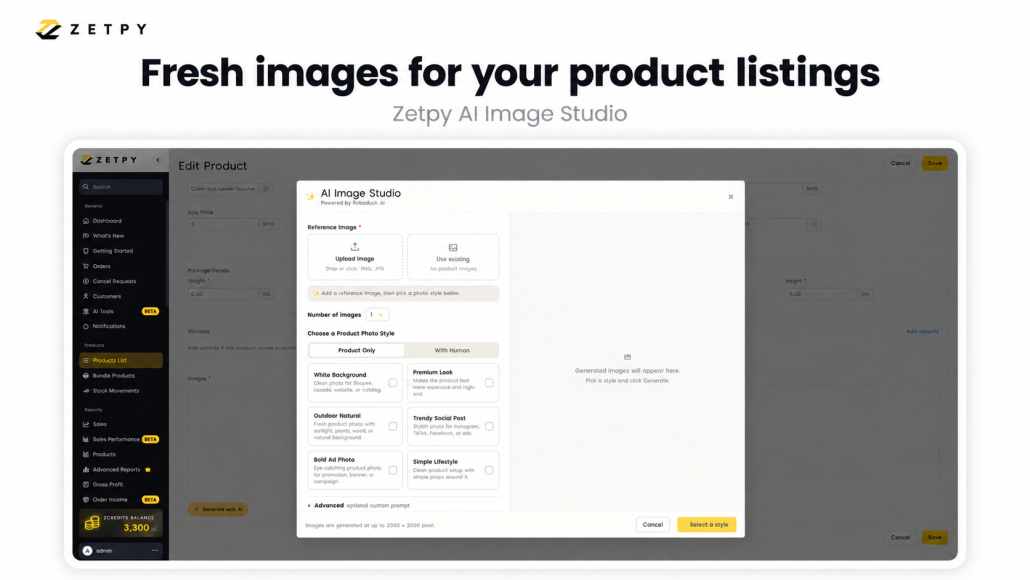
With Zetpy AI Image Studio, you can use that photo to generate new images and attach the ones you like to your product listing.
Start with a photo you already have
Open your product in Zetpy. Upload a reference photo or choose one already attached to the product.
Use a photo that clearly shows the item’s shape, colour and details. This gives you a better starting point when trying different styles.
Choose from White Background, Premium Look, Outdoor Natural, Trendy Social Post, Bold Ad Photo and Simple Lifestyle. You can also use advanced instructions to describe the look you want.
Once the images are ready, review them and select which ones to attach to your product.
See the AI Image Studio guide for the steps.
Choose a look that helps shoppers understand your product
Think about what customers need to see before they buy.
If you sell a desk organiser, a simple background can make its compartments easier to see. A desk setting can help shoppers picture how it might look in their own workspace.
The setting should support the product and keep its important details visible.
Tell it what you have in mind
Your instructions don’t need to be complicated. Describe the background, lighting and any details you want to keep visible.
For example:
Place the product on a tidy desk with a neutral background and soft lighting. Keep the compartments visible. Do not add accessories inside the organiser.
Use this as a starting point, then check whether the result matches what you asked for.
Check the details before attaching an image
Take a moment to compare the generated image with your original photo.
Does the shape look right? Is the colour accurate? Are labels and packaging shown correctly? Check for extra parts or accessories that aren’t included with the purchase.
Look at the background too. A setting might look nice but hide part of the product or make its size unclear.
If something looks off, try again. Keep the images that give shoppers a clear, accurate view of what they’ll receive.
Update your listing when you’re happy with the results
Start with one product and try a few options. You don’t need to refresh every listing at once.
After reviewing the results, attach your chosen images to the product. For products already synced to supported marketplaces, you can also push updated images to Shopee, Lazada and TikTok Shop.
The marketplace image update guide shows you how to select accounts and arrange the image order. Check the channel’s image requirements before publishing.
Want to see how it works?
We’ll walk you through choosing a reference photo, generating images and attaching your favourites to your product listing.